The Hotel PC Remembered My Flight: A Logout Test in Six Business Centers
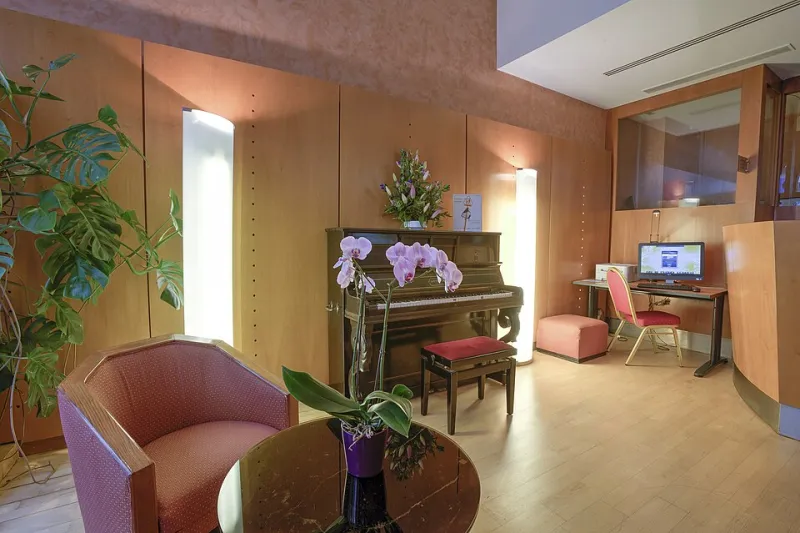
Photo: Opera Cadet from PARIS, FRANCE, CC BY-SA 2.0, via Wikimedia Commons
I spent part of this month doing something deeply unglamorous: using six hotel business center Windows PCs in three cities, logging out like a normal traveler, and then looking at what the machine still remembered. No recovery tools, no snooping into other guests' files, and no tricks. I used throwaway accounts and test documents with fake names. The point was simple. When you walk away from a shared PC, what actually walks away with you?
The answer is not much, but it is also not nothing. A logout is a door, not a shredder. That distinction matters more during the 2026 holiday travel season, when a lot of people will print boarding passes, check email, and pay for something at a hotel business center or a library terminal.
How I tested the machines
I treated each PC like a quick travel stop. I opened a browser, checked a throwaway email, downloaded a fake itinerary PDF, typed a fake name and phone number into a form, printed one test page, and copied a line of text. Then I logged out the way most people do: closed the browser, signed out of the Windows account if the machine offered one, and walked away.
Afterward, with permission from staff where needed, I signed back into the same shared account or asked the front desk to let me inspect the guest profile. I looked for browser autofill suggestions, recent files, the Downloads folder, print queues, clipboard traces, and saved Wi-Fi details. I also checked two library terminals as a control group. Those were locked down more tightly, but not perfectly.
What survived a normal logout
The first surprise was browser autofill. On three of the six hotel PCs, the browser offered my fake email address or phone number the next time a form field was clicked. One machine had saved-form settings turned on in a shared Chrome profile. Another was running Edge with autofill enabled and no guest mode. A third had a browser profile that clearly got reused between guests. Private browsing would have helped here, but only if the traveler chose it before typing.
Recent files were the second issue. On four machines, File Explorer's recent-items list still showed the fake itinerary PDF after logout. The file itself was sometimes gone and sometimes not, but the shortcut and filename remained. That is enough to reveal where someone traveled, when, and sometimes an airline or confirmation number.
The Downloads folder was worse. My test PDF was still sitting there on five of the six PCs. Browsers default to Downloads, and a lot of people close the window without deleting the file. On a shared Windows account, the next person can open that folder just by clicking around.
Print queues were inconsistent but memorable. Two machines still had my test page listed in the queue after I logged out, and one showed the document name in the printer status window. A stuck print job is not just an IT annoyance. The filename can be personal.
Clipboard traces were the murkiest finding. On two machines, the plain clipboard did not survive a full sign-out. On one, clipboard history was enabled in the shared profile, and text I had copied was still available through the history interface. On another, the browser's own form history did more damage than the Windows clipboard. The lesson is not that every clipboard survives. It is that clipboard data can linger when the machine uses one shared account and nobody clears it.
Saved Wi-Fi details were mostly a laptop problem, not a hotel-PC problem. The business center machines already knew the hotel network. But it reminded me that my own laptop keeps a list of every hotel, airport, and coffee shop network I have joined. That list travels home with me.
Logout is not a cleanup
Most of what I found came down to one configuration choice: the hotel used a shared local Windows account instead of a fresh guest profile for each person. In that setup, logging out of a website or closing the browser does not reset the Windows profile. Autofill, recent files, downloads, and printer history can all stay in the same account.
That is not a scandal. Shared PCs are expensive to manage, and many hotels simply do not reset them between users. But it means you should not treat the logout screen as a cleaning crew. If you need to use a public PC, assume the machine will remember more than you expect.
A public PC checklist that takes two minutes
Use the browser's guest or private mode from the start. In Chrome, open Guest profile. In Edge, use InPrivate. Do not sign into your browser account or turn on sync on a shared machine.
Decline every offer to save a password, address, or payment card. If you are checking email in a web browser, sign out of the web app and close the tab. If you used a document, delete it from Downloads and empty the Recycle Bin if the machine lets you.
For printing, collect the page immediately and check the printer queue before you leave. If a job is stuck, ask the front desk to clear it. Do not print anything with a confirmation number, home address, or full name unless you have to.
Clear the clipboard before you go. On Windows 11, press Windows key + V and use Clear all if clipboard history is available. Then copy something harmless over the clipboard, like a single space, and sign out fully. If the PC offers a guest session, use it.
Finally, do not reboot the machine and assume you are safe. A reboot can clear some temporary data, but it will not remove files from Downloads or wipe a browser profile. Ask staff what their reset policy is. If the answer is a shrug, keep your session short and sensitive work off the machine.
Cleaning your own laptop after the trip
Your laptop has the opposite problem. It is yours, so it keeps everything. After a trip, open Settings > Network & internet > Wi-Fi > Manage known networks and forget the hotel or airport network you no longer need. While you are there, check for any captive-portal autofill entries in your browser.
Clear the clipboard history with Windows key + V and Settings > System > Clipboard. In File Explorer, remove recent travel files from Quick Access, and turn off recent-items display if you do not need it. Open Settings > Bluetooth & devices > Printers & scanners, open the print queue, and cancel anything left over from the road.
Then clean the browser. In Chrome or Edge, go to the autofill settings and delete saved addresses, phone numbers, and payment info you added for the trip. Remove boarding passes and rental car PDFs from Downloads. If you signed into email or banking on a hotel PC, sign out of active sessions on your phone or home PC and change the password if anything felt off.
The bottom line
The six hotel PCs did not hand over my whole life, but they did keep enough to be annoying. A filename, a phone number, and a print job can tell a story. Treat a public computer like a borrowed phone: use guest mode, keep the session short, and clean up before you hand it back. At PC Privacy Software, that is the kind of plain-English privacy advice we prefer. It is less about spy-movie tricks and more about not leaving your itinerary in the printer queue.


